

Parent guide
See your child’s results, timetable, attendance and school news
1Activate your account (first time)
- Get the activation slip from the homeroom teacher (paper or LINE) — it has a code and a QR
- Scan the QR or go to iep.ank.ac.th/activate and type the code
- Enter your child’s date of birth to confirm, then tap “Check”
- Enter your name, relationship and phone number (your username)
- Set a password of at least 8 characters with letters and numbers, then tap “Activate”

- Enter the code and your child’s birth date
- Check

Each code works once and does not expire while your child is studying — ask the homeroom teacher if you lose it
More than one child: sign in, open “Profile” → “Add a child”, and use the other child’s code
2Sign in
- Tap “Sign in” → choose the Parents tab
- Username = the phone number you registered, plus your password

- Tabs: children · results · timetable · attendance · news
3Forgot password
- Tell the homeroom teacher — they will give you a one-time reset code
- Go to iep.ank.ac.th/activate, enter the reset code and your child’s birth date, then set a new password
4View results
- Menu Results → subject results, grades and GPA for the term / year
- Results appear only after the school releases them

5Timetable
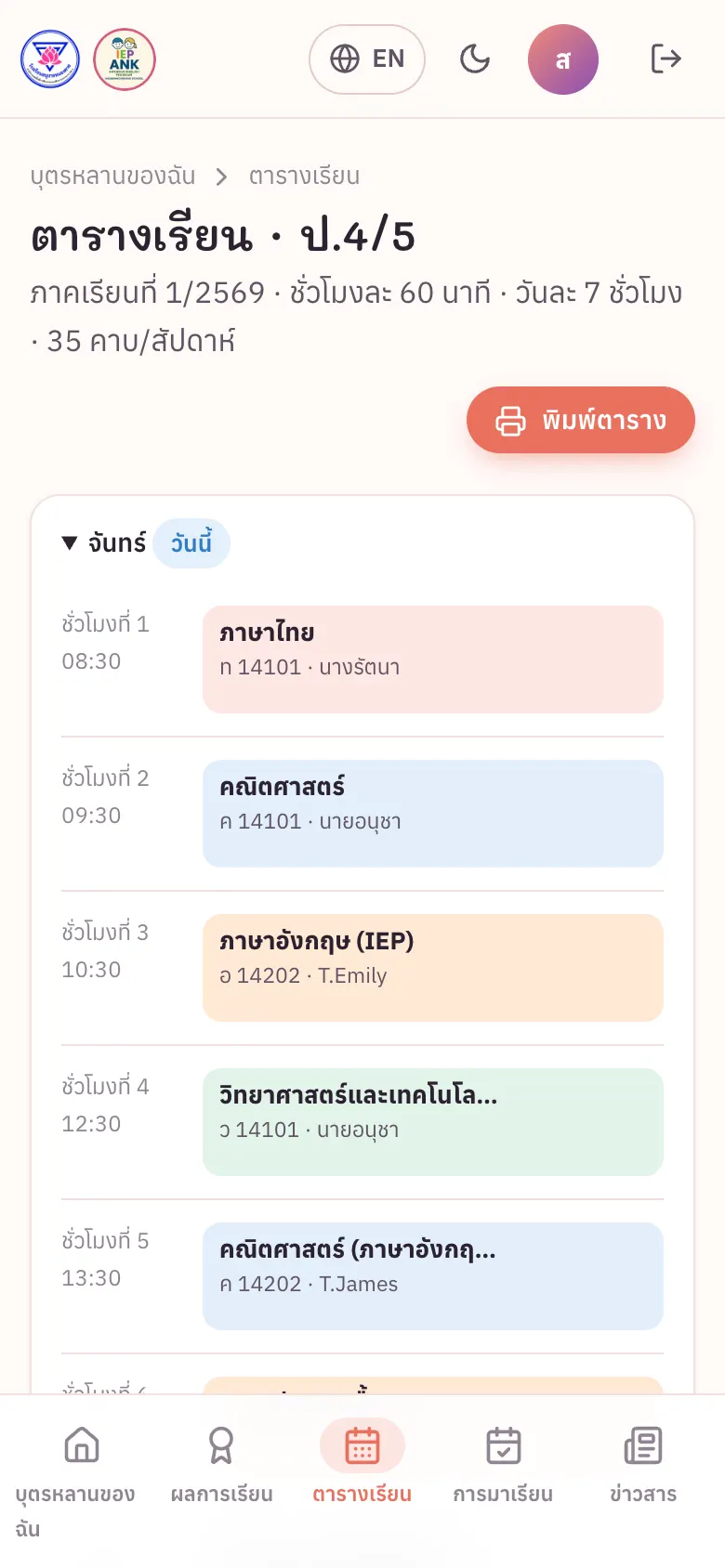
- Menu Timetable → the weekly timetable (60-minute periods from 08:30, lunch 11:30–12:30)
- Substitutions and changes are labelled in the period
6Attendance & leave requests
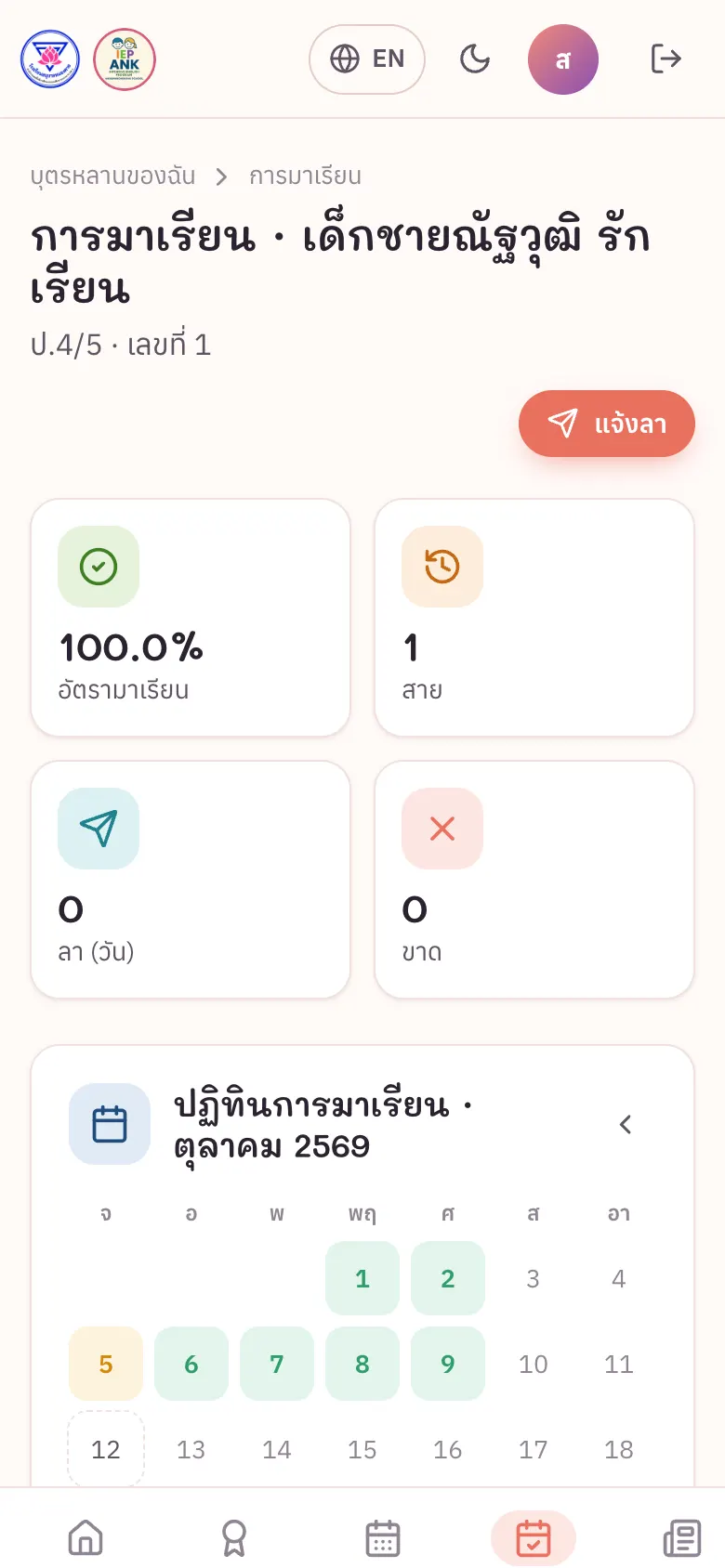
- Menu Attendance → monthly calendar (present / late / leave / absent) and attendance rate
- Tap Request leave → pick dates, sick/personal, give a reason → sent to the homeroom teacher
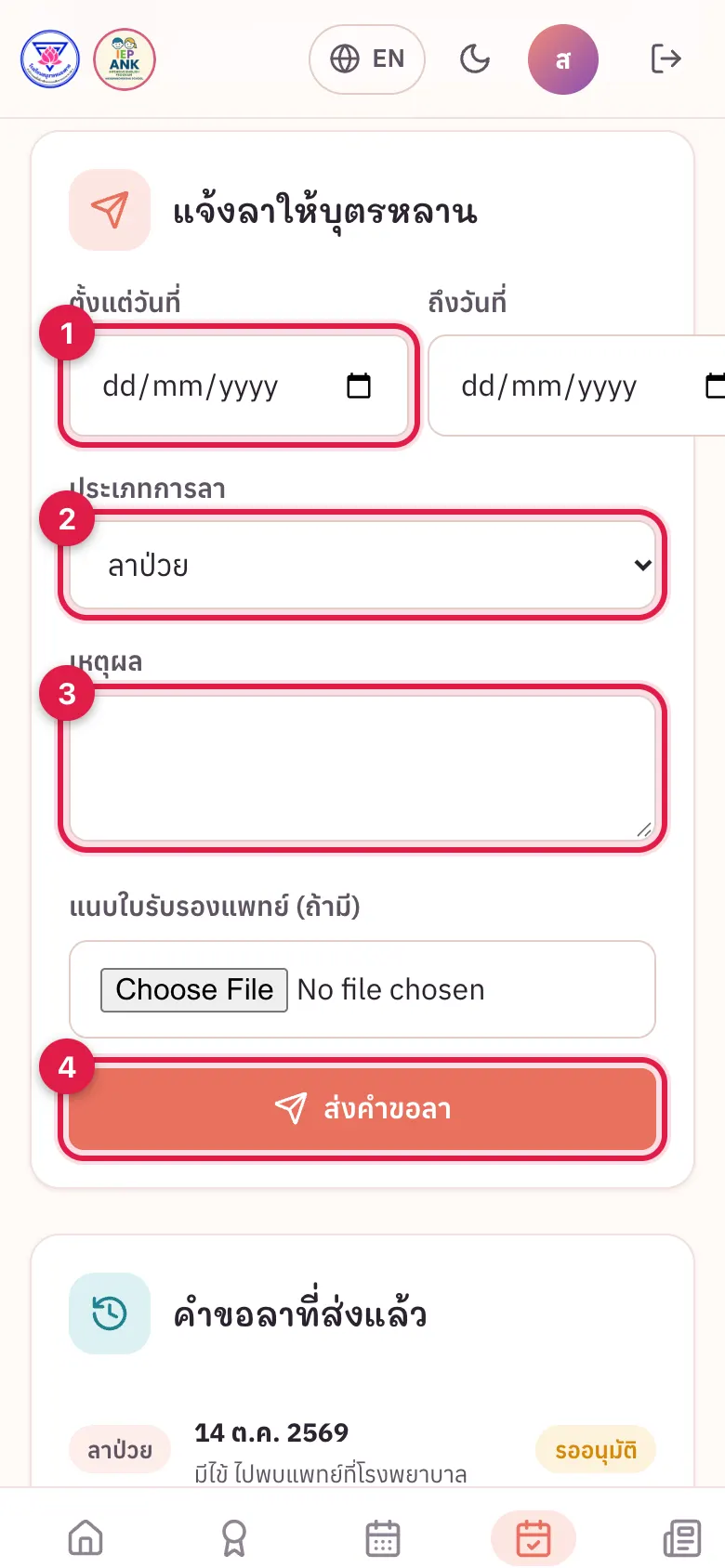
- Dates
- Leave type
- Reason
- Send
7News
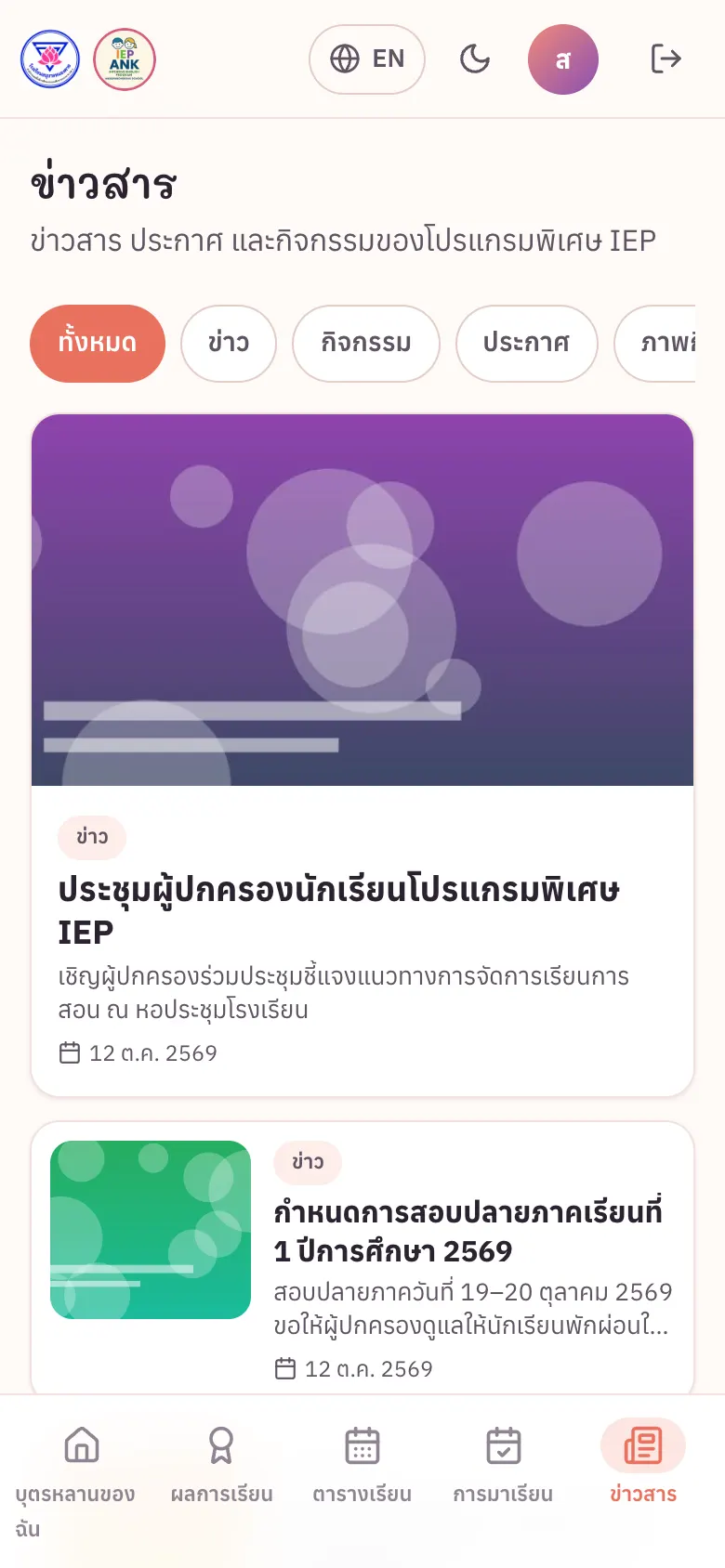
- Menu News → news, events, announcements and photos (tap a photo for full screen, swipe to browse)
- Some posts are for parents only — sign in to see them
8My account
- Tap your profile picture → Profile
- Change your photo, display name, phone, LINE ID, language and notifications
- Change password under “Security”

Need help? Contact the homeroom teacher